


Use Lockly TapCom to Welcome Guests
This article explains how to use Lockly TapCom after it has been set up.
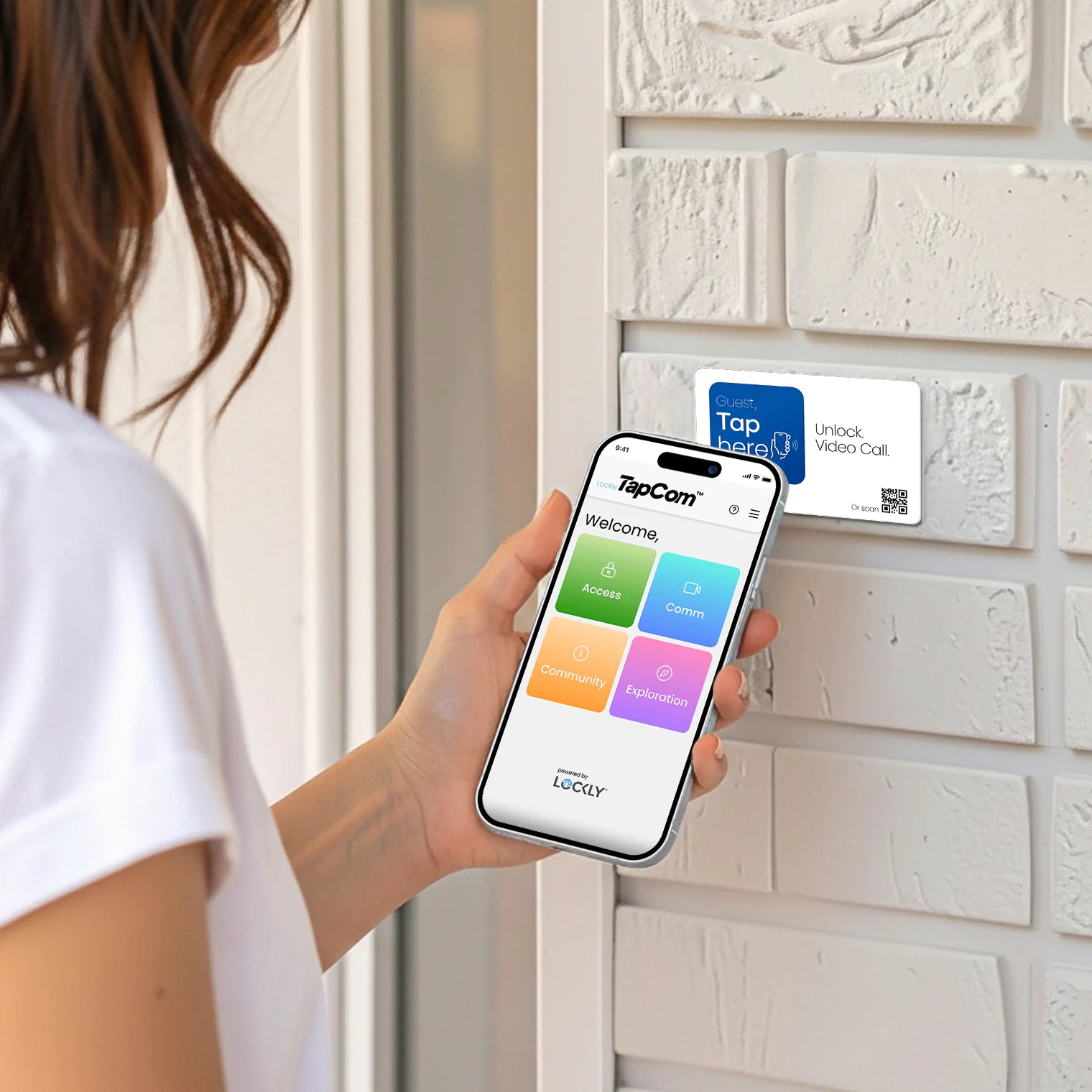
With Lockly TapCom, guests can video call you and unlock your door using a temporary code—without downloading an app.
Link Your Lockly TapCom Plate
Before using Lockly TapCom, make sure your Lockly TapCom Plate is linked to your lock.
- Open the Lockly app.
- Select your lock.
- Tap Lockly TapCom.
- Choose the Lockly TapCom Plate.
- Tap Link.
- You’ll see a confirmation once the Lockly TapCom Plate is linked successfully.
Create a Lockly TapCom Code
You can create a Lockly TapCom Code ahead of time or during a video call.
To create a code in advance:
- Open the Lockly Home app.
- Go to Access.
- Tap Add User.
- Select Lockly TapCom.
- Set the code and validity period.
- Tap Create.
- You can share the code with your guest when ready.
Answer a Lockly TapCom Video Call
When a guest taps or scans the Lockly TapCom Plate, you’ll receive a Lockly TapCom video call.
- When your phone rings, tap Answer.
- The video call will begin.
If you’re signed in on multiple devices with the same account, all devices will ring.
Only the first device to pick up the call will connect.
Unlock the Door During a Call
After confirming your guest during a Lockly TapCom video call:
- Tap Unlock Now on the call screen.
- The door will unlock.
You can also generate a Lockly TapCom Code during the call.
The code will appear on the guest’s screen automatically.
Turn Off Lockly TapCom Video Calls
If you don’t want to receive Lockly TapCom video calls temporarily:
- Open the Lockly app.
- Go to Lockly TapCom Settings.
- Turn off Video Calls.
You can turn video calls back on at any time.
Unlink the Lockly TapCom Plate
If you no longer want to use Lockly TapCom:
- Go to Lockly TapCom Settings.
- Tap Unlink this TapCom Plate
- Confirm.
All Lockly TapCom Codes will be deleted immediately and cannot be reused.
Share Updates Using Community
Lockly TapCom includes a Community feature for sharing helpful information with guests, such as:
- Check-in instructions
- Wi-Fi details
- Parking information
- House rules
To post an update:
- Open Community.
- Tap Add New Post.
- Enter a title and message.
- Tap Post.
To delete a post, swipe left on it.
Helpful Tips
- Guests need an internet connection to use Lockly TapCom.
- Guests can tap the Lockly TapCom Plate using NFC or scan the QR code.
- You can create multiple Lockly TapCom Codes for different guests.
- Turning off video calls does not disable Lockly TapCom Codes.