

How to Use Lockly TapCom to Unlock the Door and Call the Owner
This article explains how to use Lockly TapCom as a guest.
With Lockly TapCom, you can unlock the door or contact the owner right from your phone—no app download required.
Get Started at the Door
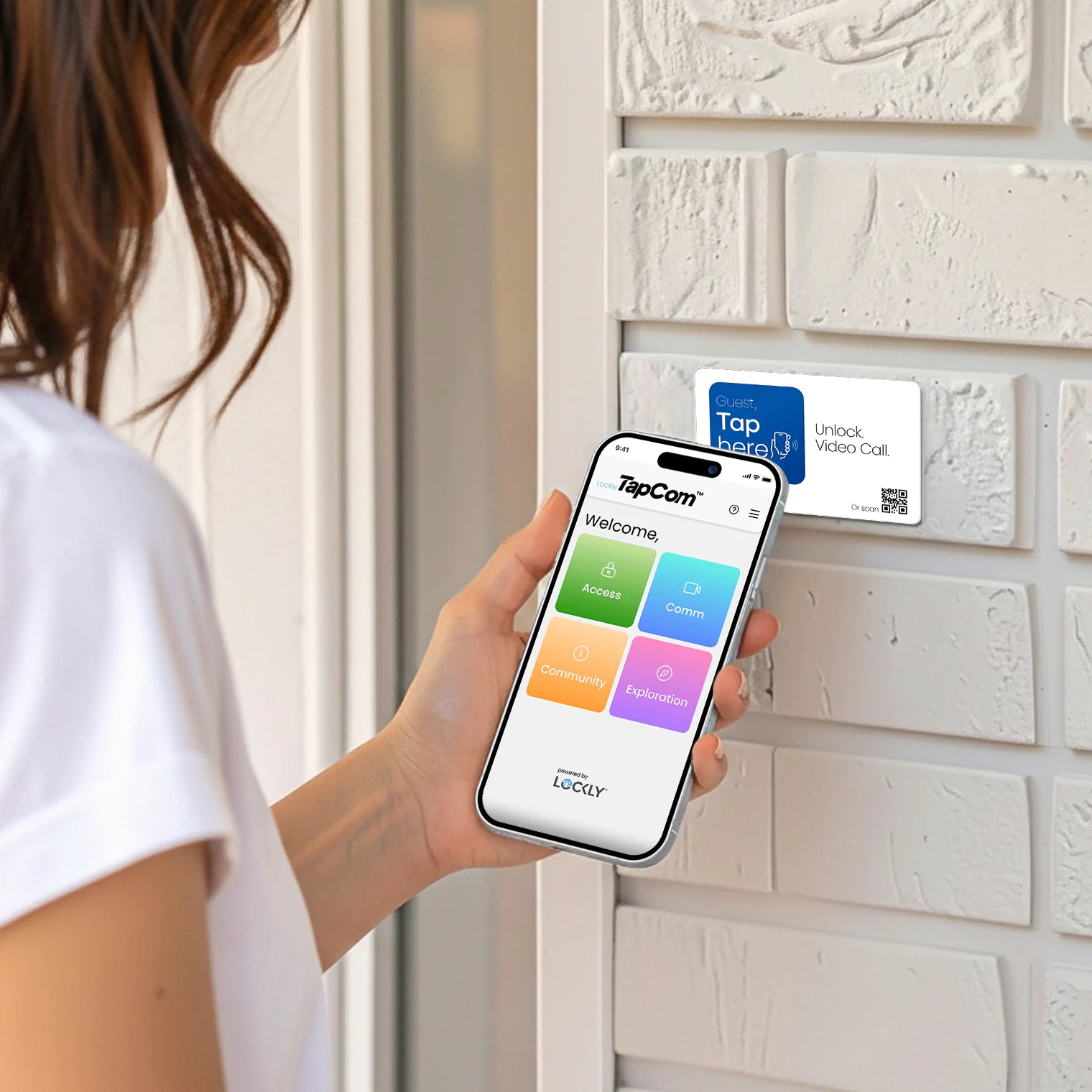
When you arrive, look for the Lockly TapCom Plate near the door.
To begin:
- Tap your phone on the plate using NFC
or
- Scan the QR code on the plate
A secure window will open automatically.
Unlock the Door with a Lockly TapCom Code
If the owner shared a Lockly TapCom code with you:
- Tap Access.
- Enter the code you received.
- The code will be validated.
If valid, tap to unlock the door.
Make sure:
- Your phone has an active internet connection
- Bluetooth is turned on and allowed
- You are standing close to the door
Start a Video Call with the Owner
If you don’t have a code—or need help at the door—you can place a video call.
- Tap Call.
- The owner will receive your video call on their phone.
- Once they answer, you can speak with them live.
Only the owner of this door can receive your call.
If the Door Doesn’t Unlock
If unlocking doesn’t work:
- Check your internet connection
- Make sure Bluetooth is enabled
- Move closer to the door and try again
You can also place a video call to the owner for help.
If You Close the Lockly TapCom Window
No problem.
Just tap the Lockly TapCom Plate again or scan the QR code to return instantly.
Helpful Tips
- You don’t need to download an app to use Lockly TapCom
- You may share your code with others in your group if needed
- An internet connection is required
- For security, calls only go to the owner of the door
A Smooth Arrival
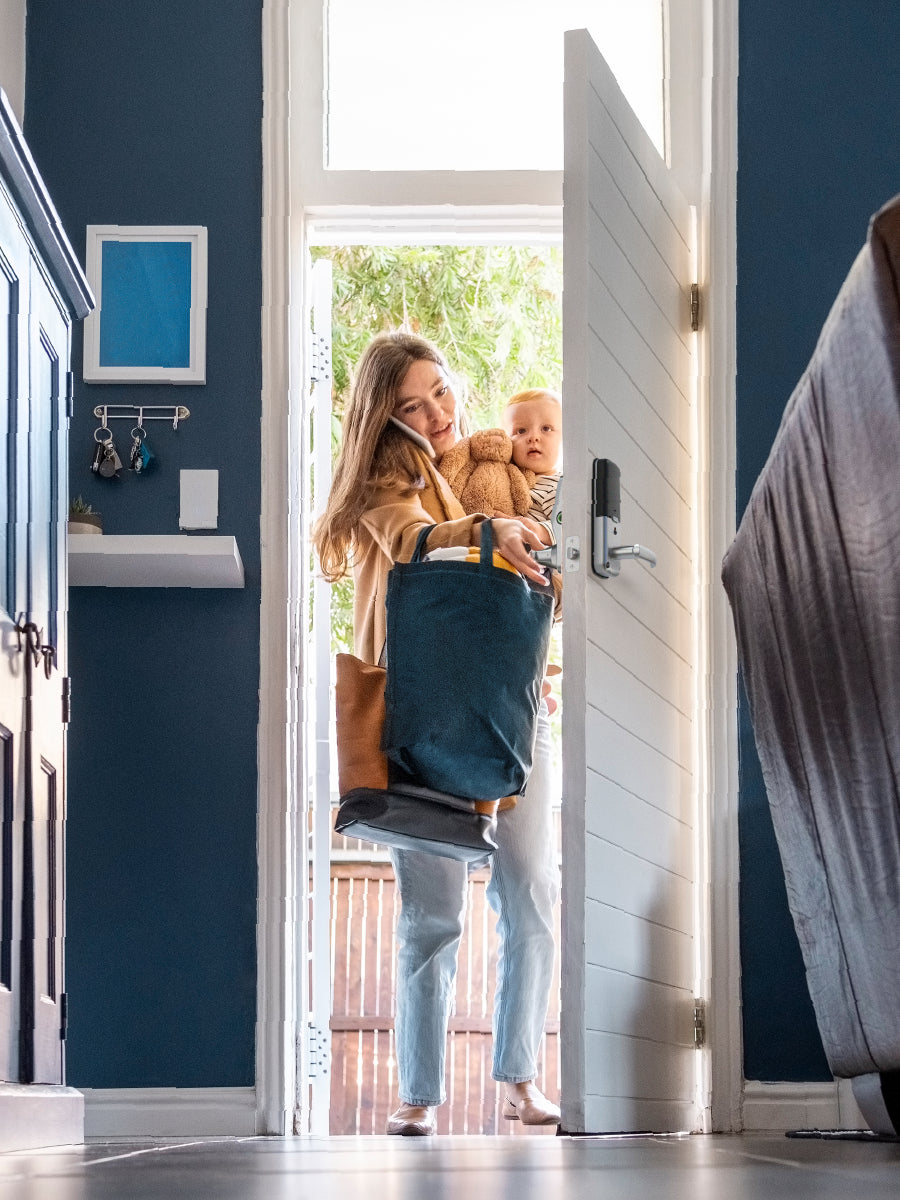
Lockly TapCom is designed to make arrival simple and stress-free—so you can get inside quickly and start your stay.
Welcome, and enjoy your visit.